
How Long Can Veo 3.1 Videos Be? Length Limits & Max Duration Explained (2026)
Veo 3.1 clips max out at 8 seconds per generation, but you can extend to ~148 seconds. Native durations, Fast vs Quality, video-to-video rules, and FAQ.
Emma Chen · 15 min read · Jun 29, 2026
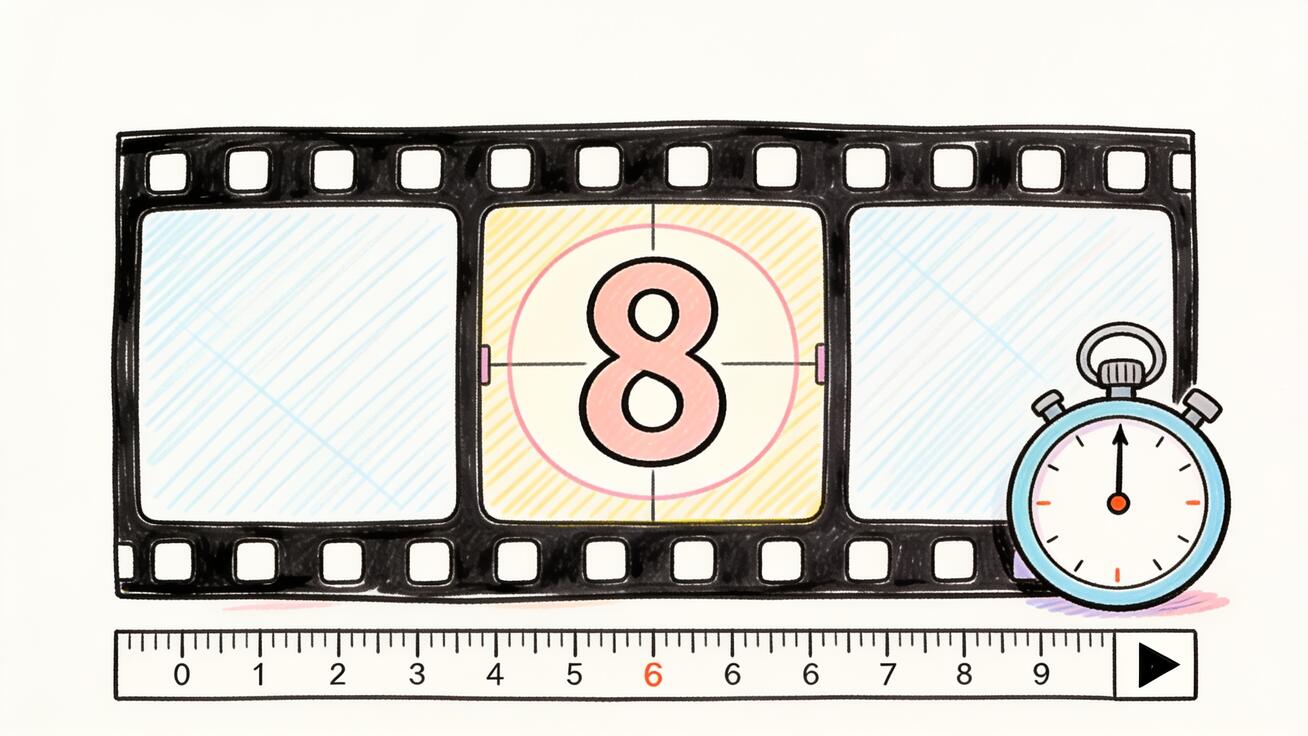
If you are planning a shot in Veo 3.1, the first thing you need to know is the Veo 3.1 length limit: a single generation maxes out at 8 seconds. That is the hard ceiling for one clip, whether you run Veo 3.1 standard or Veo 3.1 Fast. But "8 seconds per clip" is not the same as "8 seconds per video" — with the extend workflow you can chain clips into one continuous video up to roughly 148 seconds (about 2.5 minutes). This guide breaks down exactly how long Veo 3.1 videos can be: the native clip durations, the maximum length you can reach by extending, how Fast and Quality compare on duration, and the video-to-video rules — so you can plan your shot list without guessing.
Short answer: Veo 3.1 length limits at a glance
Veo 3.1 generates clips of 4, 6, or 8 seconds per generation, with 8 seconds being the maximum for a single clip. By extending a clip — adding 7 seconds per hop, up to 20 times — you can build one continuous video up to about 148 seconds long. Resolution is 720p or 1080p at 24 fps.
| Spec | Veo 3.1 limit |
|---|---|
| Single clip durations | 4, 6, or 8 seconds |
| Max single generation | 8 seconds |
| Max extended length | ~148 seconds (8s + 7s × 20 extends) |
| Per-extend increment | 7 seconds |
| Max number of extends | 20 |
| Frame rate | 24 fps |
| Resolution | 720p or 1080p |
| Fast vs Quality duration | Identical — both cap at 8s |
If you only remember one thing: 8 seconds is the per-generation wall, ~148 seconds is the per-video ceiling. Everything below explains how to live within those numbers and when each applies.
How long is a single Veo 3.1 video? (4, 6, or 8 seconds)
When you generate a clip directly — text-to-video or image-to-video — Veo 3.1 produces a fixed-length output. You can request 4, 6, or 8 seconds, and 8 seconds is the longest a single generation will return. There is no slider for 12 or 15 seconds; the model does not offer it, and no prompt trick unlocks a longer single clip.
This is because Veo 3.1 renders every frame plus native audio in one coherent pass. Holding a character's face, outfit, lighting, physics, and lip-synced sound stable gets exponentially harder the longer the window, so Google ships a fixed per-generation ceiling to protect quality. The 8-second cap is the window where Veo 3.1 reliably looks good, not an arbitrary paywall.
A few practical notes on the native durations:
- 8 seconds is the default and the max. Most creators leave it at 8s unless they have a specific reason to go shorter.
- 4 and 6 seconds are useful for tight cuts — product flashes, logo stings, social hooks, or any beat that does not need a full 8-second hold.
- Audio is generated for the full clip length. Whatever duration you pick, Veo 3.1 scores dialogue, ambience, and effects across the whole window.
- 24 fps is fixed. An 8-second clip is roughly 192 frames; this matters if you plan to interpolate or edit frame-by-frame later.
So when someone asks "how long are Veo 3.1 videos," the honest one-line answer is: each generation is 4 to 8 seconds, and the maximum is 8 seconds per clip.
Veo 3.1 maximum video length: how to reach ~148 seconds
Here is where most "Veo 3.1 maximum video length" searches go wrong — they assume 8 seconds is the end of the story. It is not. The extend workflow lets you stitch new generations onto the tail of an existing clip, and Veo 3.1 supports this far beyond a single hop.
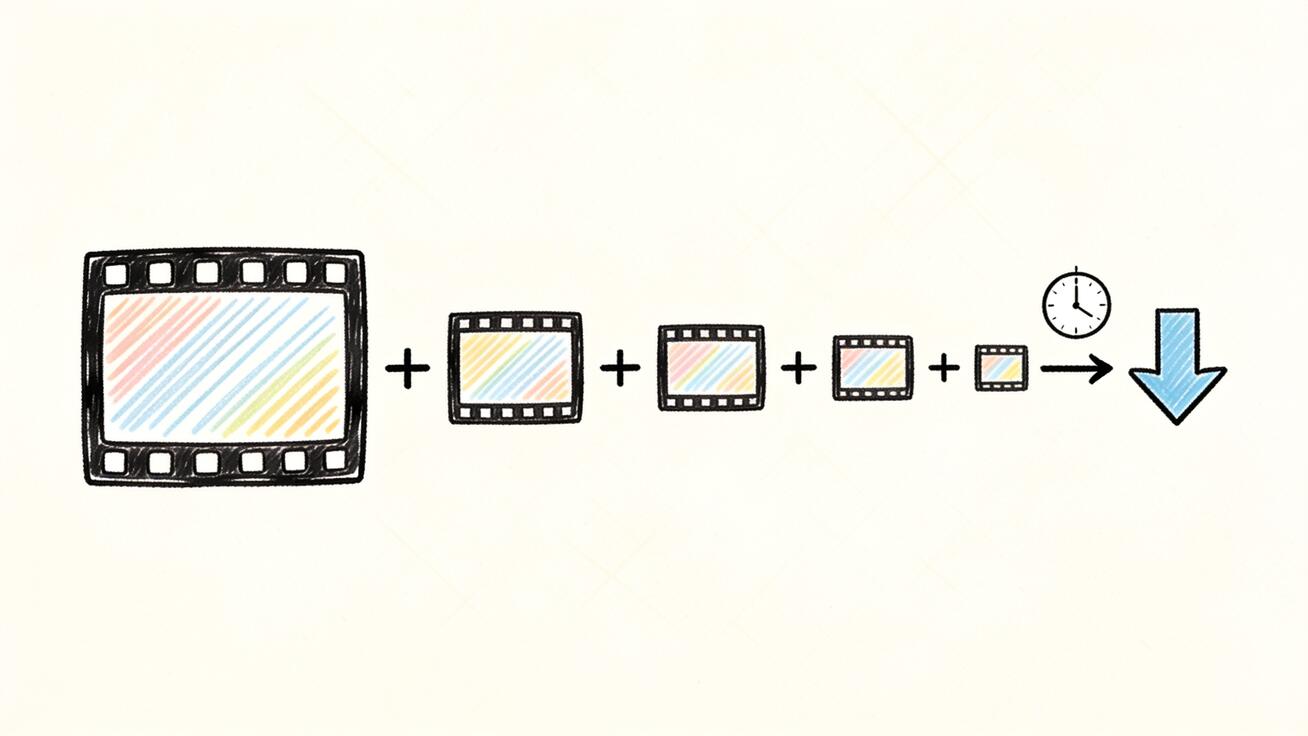
The math is simple:
- You start with an 8-second clip.
- Each extension adds 7 seconds of new footage, seeded from the tail of the previous segment.
- You can extend up to 20 times.
- 8 + (7 × 20) = 148 seconds — roughly 2.5 minutes of continuous video.
That 148-second figure is the practical maximum for one continuous Veo 3.1 video built through the extend loop. The input video you feed into an extend call must itself be Veo-generated and can be up to about 141 seconds long, which is exactly what lets the final hop reach ~148s.
A continuous extended video is not the same as cutting between separate shots in an editor. Extending keeps the same take rolling — same character, same set, same lighting — by using the last frame (and ideally the motion and style) of clip A as the seed for clip B. The whole skill of going long is controlling drift between segments so the seams disappear.
This article is the spec/limit reference. For the actual step-by-step extend workflow — the click path in Flow Scene Builder, the Frames-to-Video chaining technique, the Gemini API extend loop, and the copy-paste prompt scaffolds that stop your character from changing halfway through — follow our dedicated tutorial: How to Extend Veo 3 Videos Beyond 8 Seconds. The limits here tell you what is possible; that guide shows you exactly how to do it. You can open Veo 3.1 on veo3ai.io in another tab and follow along.
One Flow caveat worth knowing
Inside Google Flow, the basic Extend button has historically run on Veo 2 Fast — which means no native audio and lower fidelity than Veo 3.1. If you want to extend while keeping full Veo 3.1 quality and sound, the reliable route is Frames-to-Video: save the last frame of your clip as an asset, then start the next generation from that frame with a Veo 3.1 model selected. This preserves the look and audio that the one-click Extend button drops. The extend tutorial above covers this in detail.
Veo 3.1 Fast vs Quality: does duration change?
A common assumption is that Veo 3.1 Fast trades away length for speed. It does not. Veo 3.1 Fast and Veo 3.1 standard (Quality) support exactly the same durations: 4, 6, or 8 seconds per clip, with the same 8-second maximum. Duration is not the variable that changes between the two tiers.

What actually differs is speed, cost, and a small amount of fidelity:
| Dimension | Veo 3.1 (Quality) | Veo 3.1 Fast |
|---|---|---|
| Clip durations | 4 / 6 / 8 s | 4 / 6 / 8 s (identical) |
| Render time (8s clip) | ~3–4 minutes | ~90–120 seconds |
| Approx. cost | ~$0.40–0.75 / second | ~$0.10–0.15 / second |
| Visual quality | Highest fidelity | Minimal difference (~1–8%) |
| Native audio | Yes | Yes |
In blind comparisons the quality gap is small — often in the 1–8% range depending on scene complexity, and most viewers cannot reliably tell Fast from Quality side by side. So the choice is rarely about length:
- Use Veo 3.1 Fast for drafts, prompt iteration, social content, and high-volume work where speed and cost matter more than the last few percent of polish.
- Use Veo 3.1 Quality for hero shots, client deliverables, complex motion, or anything where fidelity is worth the extra render time and credits.
Either way, your per-clip ceiling is 8 seconds and your extended ceiling is ~148 seconds. The tier does not move those numbers.
Veo 3.1 video-to-video and extend length rules
"Veo 3.1 video to video length" trips people up because the input and output rules are different from a fresh generation. When you extend or run a video-to-video continuation:
- The source must be a Veo-generated video. You cannot feed in arbitrary uploaded footage and extend it; the extend pipeline expects a clip the model produced.
- The source can be up to ~141 seconds long. That upper bound on the input is what allows the final extension to land at the ~148-second total.
- Each extend call outputs a 7-second increment that is appended to your existing video, not a standalone clip.
- Extended output typically renders at 720p. If you need maximum resolution on a long piece, plan for that — the longer you go via extend, the more you are working in the 720p lane rather than 1080p.
Practically, this means a long Veo 3.1 video is built iteratively: generate a strong 8-second base, then extend in 7-second hops, re-stating your character and scene description on each hop to prevent drift. The ceiling is 20 hops / ~148 seconds, but quality discipline — not the hard limit — is usually what decides how long you can realistically go before seams or drift appear.
Why Veo 3.1 caps clips at 8 seconds
Understanding the why helps you plan better shots. Veo 3.1 is an all-in-one generative model: it produces visuals, motion, physics, and synchronized native audio together in a single pass. Three things make longer single generations hard:
- Identity drift. The longer the clip, the more chances a face, outfit, or background has to subtly mutate. An 8-second window is where the model holds identity reliably.
- Physics and motion coherence. Believable continuous motion over many seconds compounds error. Short windows keep movement clean.
- Audio sync. Native lip-sync and sound design have to track the visuals frame-for-frame; longer windows raise the risk of desync.
Rather than ship longer clips that look worse, Google caps each generation at 8 seconds and offers extend as the path to length. There is also a roadmap signal that native generation windows may grow (reports point to longer per-clip durations arriving over 2026), but as of now, 8 seconds per generation is the number to plan around.
How to choose your Veo 3.1 length
Pick your duration based on where the video will live, not on "as long as possible":
- TikTok / Reels / Shorts hook: a single 8-second Veo 3.1 clip is often enough for a scroll-stopping hook. Use 4–6 seconds if the beat is a quick visual punch.
- Product demo or ad: plan 2–4 chained segments (16–32 seconds) using extend, re-stating the product and lighting each hop.
- Explainer or short narrative: build toward 30–60 seconds with multiple extends, or — often better — generate several distinct 8-second shots and cut between them in an editor for variety.
- Maximum continuous take (~148s): reserve this for cases that genuinely need one unbroken shot. The longer you push a single continuous take, the harder drift control becomes; many creators get a more reliable result by combining several shorter continuous segments in post.
A useful rule: use native 8-second clips as your building block, use extend when you need continuity, and use an editor when you need variety. Most strong AI videos are not one 148-second take — they are a sequence of well-prompted 8-second shots.
Veo 3.1 vs Veo 3 length: what changed?
If you used Veo 3 before, the length rules carry over almost unchanged. Both Veo 3 and Veo 3.1 generate 4, 6, or 8-second clips with an 8-second per-generation maximum, both run at 24 fps, and both reach long videos through the same extend mechanism rather than through longer single generations.
What Veo 3.1 improves is mostly inside that 8-second window and across extends: tighter character and scene consistency, better motion, and stronger native audio — which in practice means your extended chains drift less and hold up over more hops. So the headline length numbers did not change between Veo 3 and Veo 3.1, but the quality you can sustain while approaching the ~148-second ceiling did. If you want the broader picture of Veo's limits and free-access workflow, see our Veo 3 in Google AI Studio limits guide.
The takeaway: do not expect Veo 3.1 to hand you a 20-second single clip just because it is a newer version. The architecture still favors short, high-quality generations stitched together.
Planning a length-aware Veo 3.1 video (step by step)
Because the limits are fixed, the smartest move is to plan your shot list around 8-second blocks before you generate anything. Here is a length-aware workflow:
- Storyboard in 8-second beats. Break your idea into individual beats that each fit in 8 seconds. A 32-second ad becomes four beats; a 60-second explainer becomes roughly eight. This forces clean pacing instead of one rambling take.
- Decide continuous vs cut. For each transition, ask whether the camera should keep rolling (use extend) or jump to a new shot (generate a separate clip and cut in an editor). Continuity costs drift risk; cutting costs continuity but buys variety and resolution flexibility.
- Generate the base clip at 8 seconds. Start strong — your first clip's character, lighting, and framing become the seed for everything you extend from it. Use Veo 3.1 Quality here if it is a hero shot.
- Extend in 7-second hops, re-stating everything. On each extend, repeat the character description, outfit, background, lighting, and audio cues. This is the single biggest factor in whether a long Veo 3.1 video holds together. Watch for skin-tone or wardrobe drift after a few hops.
- Cap continuous takes early when drift appears. You can go to 20 hops, but if the look starts shifting at hop 6 or 7, stop the continuous chain there and start a fresh shot instead. The hard limit is 148 seconds; the practical limit is wherever quality holds.
- Assemble in an editor. Combine your continuous chains and standalone clips, add transitions, and export. Most polished Veo 3.1 videos are a sequence of strong short shots, not one maximal 148-second take.
This approach respects the 8-second generation cap and the ~148-second extend ceiling while sidestepping the drift problems that come from blindly pushing for maximum length. The detailed prompt scaffolds for steps 3–4 live in the extend tutorial.
FAQ: Veo 3.1 length limits
How long can Veo 3.1 videos be? A single Veo 3.1 generation is 4, 6, or 8 seconds, with 8 seconds the maximum per clip. By extending — adding 7 seconds per hop, up to 20 times — you can reach a continuous video of about 148 seconds (roughly 2.5 minutes).
What is the maximum video length in Veo 3.1? About 148 seconds for one continuous video, reached by extending an 8-second base clip 20 times at 7 seconds each (8 + 7 × 20 = 148). For a single, non-extended generation, the maximum is 8 seconds.
Why is Veo 3.1 limited to 8 seconds? Veo 3.1 renders visuals, motion, and native audio together in one pass. Keeping a character's identity, physics, and lip-sync stable gets exponentially harder over a longer window, so Google caps each generation at 8 seconds to protect quality and offers extend for longer videos.
Does Veo 3.1 Fast have a shorter length limit than Quality? No. Veo 3.1 Fast supports the same 4, 6, and 8-second durations as Veo 3.1 standard. Fast is roughly twice as fast and about one-fifth the cost, with only a minimal (~1–8%) quality difference. Duration does not change between the two.
How many times can you extend a Veo 3.1 video? Up to 20 times. Each extension adds 7 seconds, so 20 extensions on top of an 8-second base reach the ~148-second maximum.
What length input does Veo 3.1 video-to-video accept? The source must be a Veo-generated video and can be up to about 141 seconds long, which lets the final 7-second extension reach the ~148-second total. Extended output typically renders at 720p.
Can I generate a 30-second Veo 3.1 video directly? Not in a single generation — the per-clip cap is 8 seconds. To reach 30 seconds you either extend an 8-second base in 7-second hops (roughly four hops) or generate multiple clips and edit them together.
What resolution and frame rate does Veo 3.1 output? Veo 3.1 generates at 720p or 1080p, 24 fps. Note that extended (long) videos typically render at 720p, so if you need 1080p, keep clips short or plan your edit accordingly.
Is the Veo 3.1 length limit different on Flow vs the Gemini API? The core numbers are the same — 8 seconds per generation, 7 seconds per extend, up to ~148 seconds total. The difference is the interface: Flow's one-click Extend has historically used Veo 2 Fast (no audio), so for full Veo 3.1 quality use Frames-to-Video in Flow or the extend endpoint in the Gemini API.
Will Veo 3.1 ever support longer single clips? Google's roadmap signals point to longer native generation windows arriving over 2026, but as of now the per-generation maximum is firmly 8 seconds. Plan around that number rather than waiting on a future update.
Conclusion
The Veo 3.1 length limit comes down to two numbers: 8 seconds for any single generation, and about 148 seconds for one continuous video built with the extend workflow. Veo 3.1 Fast and Quality share those exact limits — Fast only changes speed and cost, not duration. Plan your project around 8-second building blocks, reach for extend when you need an unbroken take, and lean on an editor when you need variety across shots. When you are ready to actually break the 8-second wall, follow our step-by-step extend tutorial, and open Veo 3.1 to start generating your first clip.
Related Articles
Continue with more blog posts in the same locale.

How to Make Sports Highlight Videos with Veo 3 AI (2026)
Create stunning sports highlight videos with Veo 3 AI. Generate dynamic action shots, slow-motion sequences, and dramatic replays using AI prompts.
Read article
How to Make a Short Film with Veo 3 AI (2026 Guide)
Learn how to create professional short films using Veo 3 AI. Step-by-step guide with prompts, workflow tips, and cinematic techniques.
Read article
How to Make Documentary Videos with Veo 3 AI (2026 Guide)
Create compelling documentary videos with Veo 3 AI. Learn prompting techniques, narrative structure, realistic footage generation, and post-production tips.
Read article