
Veo 3.1 Ingredients to Video: Combine Multiple Reference Images into One AI Clip (2026)
Use Veo 3.1 ingredients to video to combine up to 3 reference images — character, object, and scene — into one consistent AI clip. Step-by-step workflow, prompts, and how it differs from single reference and frames to video.
Emma Chen · 14 min read · Jun 29, 2026
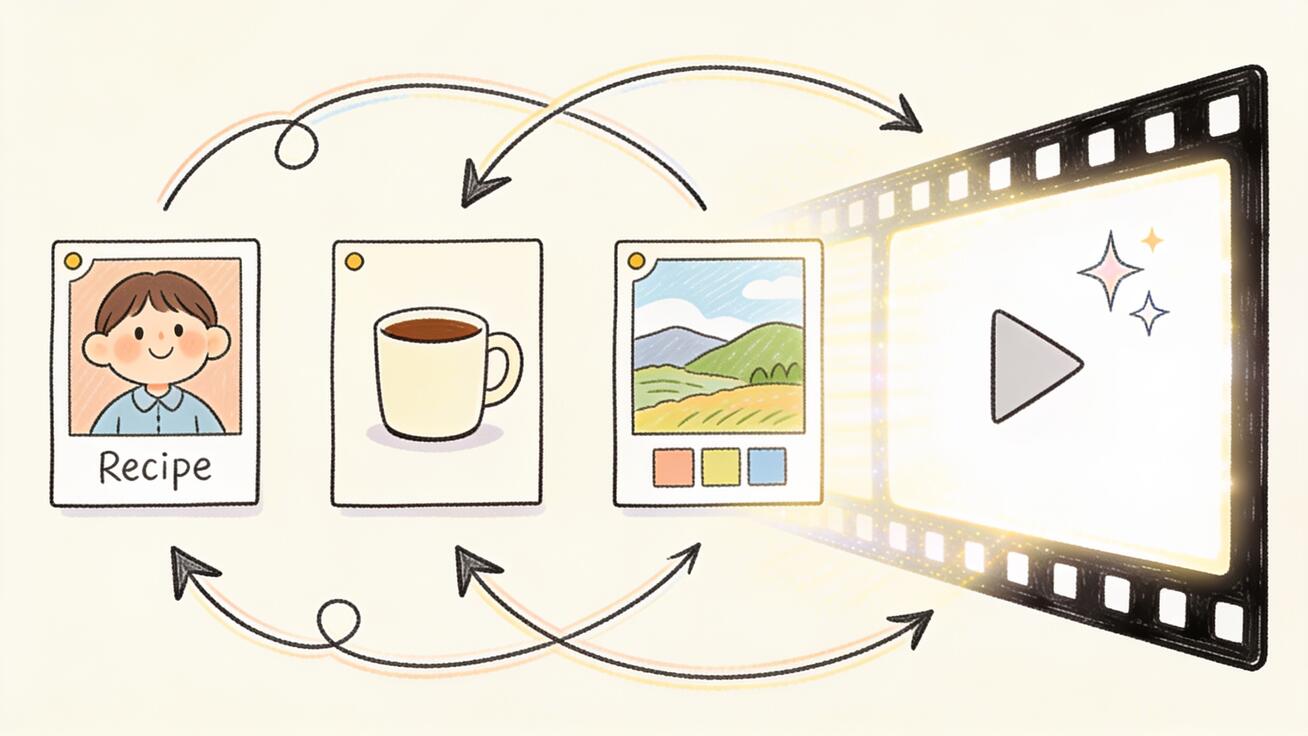
Veo 3.1 ingredients to video is the feature that lets you stop describing a scene in words and start casting it from pictures. Instead of one reference image, you hand Veo 3.1 several — a character, an object, a backdrop, a style — and the model blends those "ingredients" into a single, coherent AI clip. The result is far tighter control over who is in the shot, what they are holding, and where it all takes place than text prompts alone could ever give you.
This guide is a practical, end-to-end walkthrough of how to use ingredients to video in Veo 3.1: what the feature actually does, how many reference images it accepts, how it differs from single-image reference and frames-to-video, a repeatable step-by-step workflow you can run today in Google Flow or the Gemini app, copy-ready prompt templates, the strongest use cases, and the quality checks that separate a clean composite from a muddy one. If you already work with Veo on veo3ai.io, this slots straight into your existing workflow.
Quick Answer: What Ingredients to Video Does
Ingredients to video lets you upload multiple reference images — Google's docs and Flow call each one an "ingredient" — and then write a prompt that tells Veo 3.1 how to combine them into one generated clip. Each ingredient can define a different element of the shot: one image for a character's face and outfit, one for a product or prop, one for a location or visual style. Veo 3.1 reads all of them at once and renders a video where the character, the object, and the setting stay consistent with the photos you supplied.
In practical terms:
- You provide up to three reference images per generation (this is the current ceiling across Flow, the Gemini app, and the Gemini API).
- Each image controls a different aspect: subject, object, scene, or style.
- You add a text prompt that explicitly maps each image to its role and describes the action.
- Veo 3.1 outputs an 8-second clip — now with native synchronized audio and dialogue — and supports a native vertical 9:16 format for social platforms alongside standard landscape.
Use it when you need the same character doing a specific thing in a specific place, and you have reference photos for each of those pieces. That is the gap text-to-video can't close on its own.
How Ingredients Differs From Single Reference and Frames to Video
This is the part most tutorials skip, and it is the whole reason ingredients to video exists as a separate mode. Veo 3.1 actually gives you three different image-driven paths, and they solve three different problems.
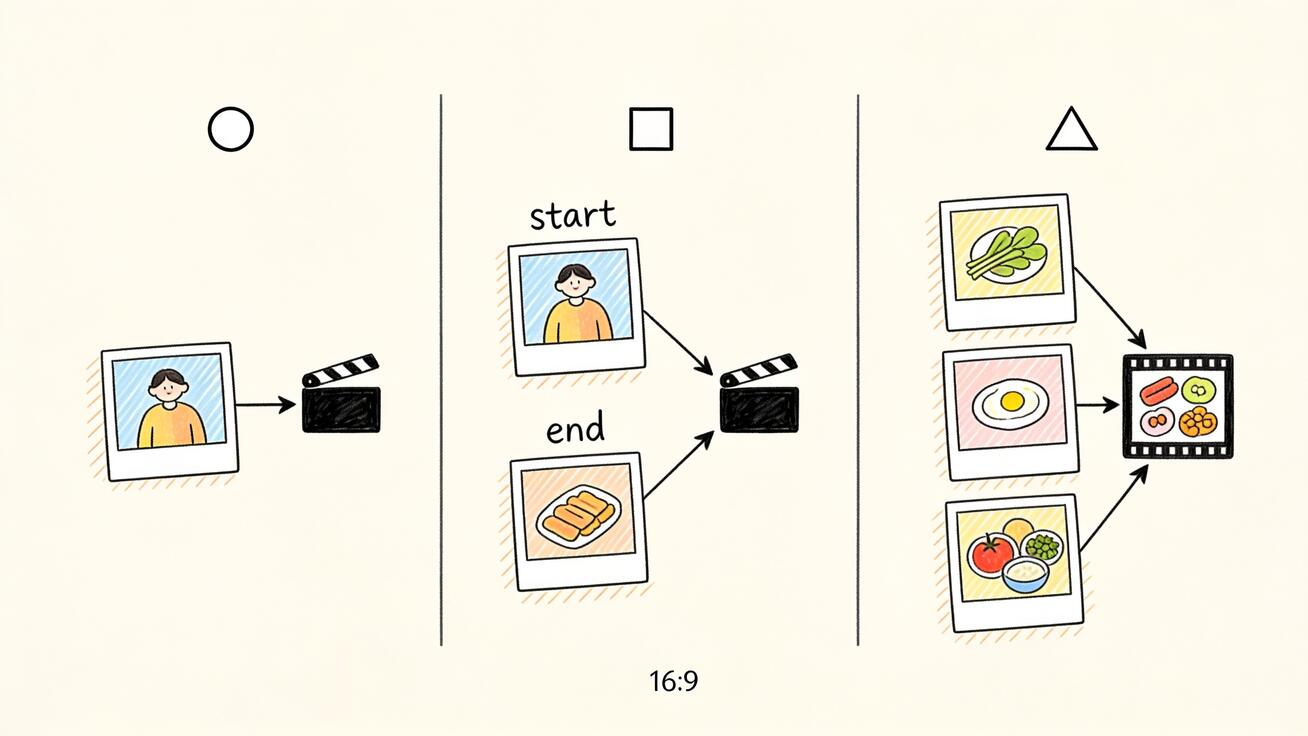
Single image reference (covered in our Veo 3 image reference workflow) uses one picture to lock one thing — usually a character's face or a product — and then generates motion around it. It is the fastest way to keep a single subject consistent across shots, but it gives you no separate control over the environment or props. One image, one anchor.
Frames to video (see our Veo 3.1 frames to video guide) takes two images — a start frame and an end frame — and interpolates the motion between them. It is about a transition: the model bridges image A to image B over time. The two images are the same scene at different moments, not different elements.
Ingredients to video is combinatorial, not interpolative. You give it several different elements — a person here, a jacket there, a city street, a film-grain mood — and it assembles them into one new scene that did not exist in any single photo. You are not bridging two states of one shot; you are compositing multiple subjects and a setting into a fresh frame. That is why ingredients is the right tool for "put this person, holding this product, in this location," and frames-to-video is the right tool for "morph this opening shot into that closing shot."
If you want the broader picture of how Veo and Gemini handle reference imagery across modes, the Gemini omni reference image, video, and audio prompting guide maps the whole system.
Where You Can Use It
Veo 3.1's ingredients to video is available across Google's surfaces:
- Google Flow — the dedicated AI filmmaking tool, where ingredients live alongside Frames and Extend.
- The Gemini app — for quick, prompt-driven generations.
- Google Vids and YouTube — for creators working inside those products.
- The Gemini API and Vertex AI — for developers who want to call ingredients to video programmatically (Vertex exposes it as a paid preview with documented model IDs).
The exact upload UI differs slightly between Flow and the Gemini app, but the core contract is the same everywhere: add your ingredient images, label or order them, write a prompt that references each one, generate.
Step-by-Step: How to Use Ingredients to Video in Veo 3.1
Here is a repeatable workflow you can run today.
Step 1: Plan Your Three Ingredients
Before you touch the tool, decide what each of your (up to three) images will control. A reliable split is:
- Subject — the character or person, ideally a clean, well-lit portrait or full-body shot.
- Object — the product, prop, or secondary item the subject interacts with.
- Scene or style — the location, background, or a reference frame that sets the color and mood.
You do not have to use all three slots. Two strong, distinct images often beat three competing ones. The constraint is the ceiling (three), not a quota.
Step 2: Prepare High-Quality Reference Images
Quality of input directly sets quality of output. For each ingredient:
- Use sharp, high-resolution PNG or JPEG files.
- Keep lighting and angle consistent across images if you want them to feel like one scene.
- Isolate the element: a portrait should be mostly the person, a product shot mostly the product. Busy backgrounds confuse the model about which part you care about.
- If you need to create clean ingredients, generate them first with an image model (Google's own workflow suggests using Gemini's image generation to build consistent characters and settings before feeding them to Veo).
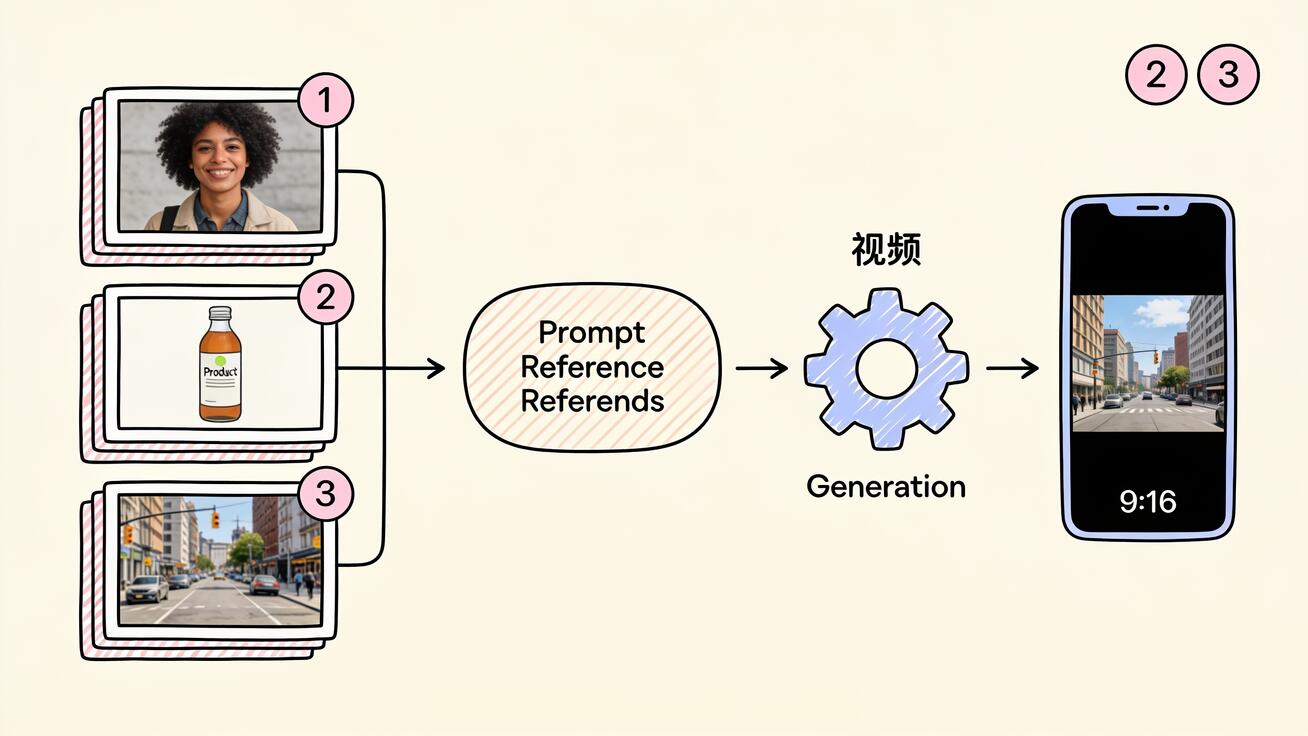
Step 3: Upload Your Ingredients in Priority Order
In Flow or the Gemini app, add each reference image to the ingredients panel. Order matters: put the most important element (usually the character) first. The model treats earlier images as higher priority when elements compete for attention in the frame.
Step 4: Write a Prompt That Maps Each Image to a Role
This is where most generations succeed or fail. Do not just write "a woman drinking coffee in a city." Explicitly connect each ingredient to its job:
"The woman from reference image 1, holding the coffee cup from reference image 2, walking through the rainy neon street from reference image 3. Slow dolly shot, shallow depth of field, she smiles and takes a sip."
By naming "reference image 1/2/3," you tell Veo 3.1 exactly how to assemble the pieces instead of guessing. Then describe the action, the camera move, and the mood — those are not in your images and must come from text.
Step 5: Set Format and Generate
Choose your aspect ratio — Veo 3.1 now generates native 9:16 vertical for TikTok, Reels, and Shorts, as well as standard 16:9. Generate your 8-second clip. Because ingredients now supports native audio, you can also prompt for dialogue or ambient sound in the same pass.
Step 6: Review, Iterate, and Extend
Inspect the output against your ingredients (see the QA checklist below). If a piece drifts, adjust the prompt wording or swap a cleaner reference image rather than regenerating blindly. When you have a clip you like, Veo 3.1's Extend and scene-extension features let you carry the same characters past the single 8-second clip into longer, connected sequences.
Prompt Templates You Can Copy
Adapt these to your own ingredients. The pattern — map each image, then describe action and camera — is what makes them work.
Character + product placement:
"The person from image 1 holding the [product] from image 2, standing in the [location] from image 3. Medium shot, soft window light, they turn the product toward camera and smile. Natural ambient sound."
Character consistency across a new scene:
"The same character from image 1, now in the forest setting from image 2. Tracking shot from behind as they walk forward, late-afternoon light, leaves drifting. Footsteps and birdsong."
Style transfer onto a subject:
"The subject from image 1 rendered in the painterly visual style of image 2. Slow push-in, the subject looks up, warm cinematic grade, gentle orchestral swell."
Two characters in one shot:
"The character from image 1 and the character from image 2 sitting across a cafe table from the interior in image 3. Over-the-shoulder shot, they laugh and clink mugs. Cafe ambience and short dialogue."
Vertical social ad:
"The model from image 1 wearing the jacket from image 2 on the city rooftop from image 3. Native 9:16 vertical, handheld energy, she spins once toward camera, upbeat. Wind and street sound."
Best Use Cases
Ingredients to video earns its keep wherever you need controlled, repeatable casting.
Branded product videos. Drop a real product photo, a brand model, and a set location into one clip so the item, the talent, and the environment all match your guidelines — without a shoot. This is the highest-value use for ecommerce and DTC teams.
Consistent characters across an episode. Keep the same protagonist across multiple shots by reusing the same character ingredient, then varying the scene and object images. Pair this with Veo 3.1's scene extension to build sequences that run well past eight seconds while holding identity.
Social-first ads in vertical. The native 9:16 mode plus ingredients means you can produce on-model, on-location TikTok and Reels content where the face, the outfit, and the backdrop are all locked to your references.
Storyboard-to-shot. If you already designed your character and key props as stills, ingredients turns those static boards into motion without re-describing everything in text.
Music and dialogue scenes. With native audio in the same generation, two-character ingredient shots can carry a short line of dialogue, making conversational scenes possible in one pass.
Quality Control Checklist
Before you ship an ingredients clip, run these checks:
- Identity match — Does the generated character actually look like your reference photo, frame to frame? Watch for face drift across the eight seconds.
- Object fidelity — Is the product or prop the right one, with correct shape, color, and logo? Generative models can subtly redesign objects.
- Scene coherence — Does the setting match your scene ingredient, and does the lighting on the subject agree with the lighting of the location?
- Element bleed — Make sure pieces from one ingredient don't leak into another (a jacket color tinting the background, for example).
- Text and hands — Check any on-product text and the subject's hands, still the most common failure points in AI video.
- Audio sync — If you prompted dialogue, confirm lip movement and sound line up.
If a check fails, fix the input first: a cleaner, more isolated reference image solves more problems than another roll of the dice on the same prompt.
Real Limitations to Know
Ingredients to video is powerful but not magic. Keep expectations honest:
- Three references is the ceiling. You cannot composite ten elements; pick the three that matter most and let the prompt handle the rest.
- Eight seconds per generation. Longer narratives require Extend or scene-extension passes, not a single clip.
- Competing references can blur. If two images fight for the same role (two faces both read as "the main subject"), results get inconsistent — order and prompt clarity matter.
- Perfect identity isn't guaranteed. Likeness is strong in Veo 3.1 but can still drift on fast motion or extreme angles; review every clip.
- Availability and pricing vary by surface — Flow, Gemini app, and API tiers differ, and Vertex AI exposes some capabilities as a paid preview.
None of these are reasons to avoid the feature; they're reasons to plan your three ingredients deliberately and QA the output.
Common Mistakes to Avoid
A few patterns cause most of the disappointing ingredients results, and all of them are easy to fix once you know to watch for them.
Cluttered reference images. If your character photo also has a strong background, a second person, or a busy logo, Veo 3.1 doesn't know which part is the "ingredient." Crop tightly so each image clearly represents one element. A clean cut-out of the subject beats a gorgeous but crowded photo.
A prompt that ignores the images. Uploading three references and then writing a generic prompt like "a cinematic scene" wastes the whole feature. The prompt has to name the images and assign roles. If you don't say "the subject from image 1, in the location from image 3," the model fills the gaps with guesses, and your references lose authority.
Conflicting lighting. A subject shot in flat studio light dropped into a moody nighttime scene will look pasted on. When you want a believable composite, choose ingredients whose lighting and angle already roughly agree, or explicitly prompt the lighting you want so the model re-lights the subject to match.
Overstuffing the slots. Three references that each fight for the lead role produce mush. Often two strong, complementary ingredients — one subject, one scene — give a cleaner, more controllable result than three competing ones.
Skipping iteration on the input. When a clip drifts, the instinct is to regenerate with the same setup. More often the better move is to swap in a sharper reference image or tighten one line of the prompt, then generate again.
How This Fits a Veo 3.1 Workflow
Ingredients to video is one of three image-driven modes you'll reach for depending on the job:
- Use single image reference when you only need one subject locked. Start with the image reference workflow.
- Use frames to video when you have a defined start and end and want a transition. The frames to video guide walks it end to end.
- Use ingredients to video when you're combining several distinct elements into one new scene.
Many real projects use all three: build characters and props as ingredients, generate the core shot, then use frames to video for a clean transition into the next beat, and Extend to lengthen the sequence. You can run these on Google's surfaces or through veo3ai.io as part of one pipeline.
FAQ
How many reference images can Veo 3.1 ingredients to video use? Up to three. Each can control a different element — subject, object, or scene/style — and you order them by priority when they compete.
Is ingredients to video different from uploading one reference image? Yes. Single-image reference locks one subject; ingredients composites multiple distinct elements (character + object + scene) into one clip. They solve different problems.
Does ingredients to video include audio? Yes. The Veo 3.1 update added native synchronized audio and dialogue, so an ingredients generation can include sound in the same pass.
Can I make vertical videos? Yes. Veo 3.1 added a native 9:16 vertical format for ingredients, optimized for mobile-first platforms like TikTok, Reels, and Shorts, alongside standard 16:9.
Where is it available? Google Flow, the Gemini app, Google Vids, YouTube, and programmatically via the Gemini API and Vertex AI.
How long is each clip? Each generation produces an 8-second clip. For longer content, use Veo 3.1's Extend and scene-extension features to keep characters consistent across connected segments.
Conclusion
Veo 3.1 ingredients to video is the most direct way to control who, what, and where in an AI clip at the same time. By feeding the model up to three reference images — one for the character, one for the object, one for the scene or style — and writing a prompt that maps each image to its role, you get composited, consistent shots that text prompts and single-image reference simply can't produce. It's distinct from frames to video, which bridges two keyframes, and from single reference, which locks just one subject. Plan your three ingredients, prepare clean inputs, prompt by role, and QA every clip. Then try the workflow yourself with Veo 3.1 on veo3ai.io and turn your reference photos into a scene that moves.
Related Articles
Continue with more blog posts in the same locale.

How to Make Sports Highlight Videos with Veo 3 AI (2026)
Create stunning sports highlight videos with Veo 3 AI. Generate dynamic action shots, slow-motion sequences, and dramatic replays using AI prompts.
Read article
How to Make a Short Film with Veo 3 AI (2026 Guide)
Learn how to create professional short films using Veo 3 AI. Step-by-step guide with prompts, workflow tips, and cinematic techniques.
Read article
How to Make Documentary Videos with Veo 3 AI (2026 Guide)
Create compelling documentary videos with Veo 3 AI. Learn prompting techniques, narrative structure, realistic footage generation, and post-production tips.
Read article